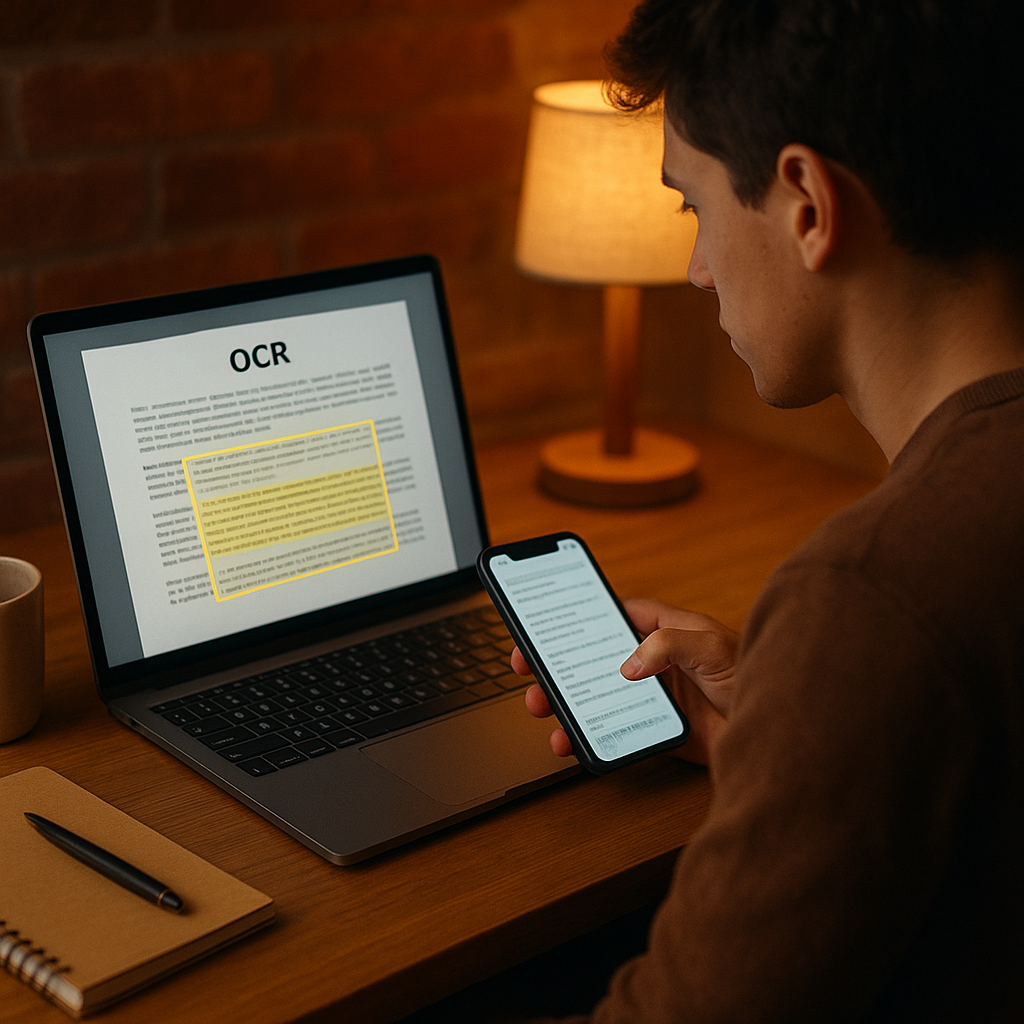
I remember the first time I spent twenty minutes typing a single physics question into a search box—annoying, right? These days, a quick snap or a screen capture often does the job in seconds. If you’ve ever wished your phone or browser could read a textbook page and just give you a clear, step-by-step answer, you’re in the right place.
Why screenshots beat manual typing (most of the time)
Typing out math problems, long chemistry equations, or questions from scanned PDFs is slow and error-prone. You fumble with superscripts, fractions, and obscure symbols; by the time you’re done, you’re already tired. That’s where a reliable screenshot workflow changes the game.
A good screenshot homework solver reads what’s on your screen—web portals, PDFs, images from textbooks—and gives you solutions or explanations without retyping. It’s like having a patient tutor who doesn’t blink when you hand them a sloppy photo.
“I snapped a pic of a two-page proof and got a step-by-step explanation back in under a minute.” — a classmate’s quick note
What actually happens behind the scenes: OCR + smart parsing
At the core of every screenshot-to-answer flow there are two steps:
OCR(Optical Character Recognition): converts the pixels on your screen into text.- Semantic parsing and solving: AI models read that text, figure out the question type, and produce a solution or explanation.
OCR handles the messy bit—handwritten notes, low-contrast scans, or textbook fonts. Once text is recovered, the solver figures out whether it’s a multiple-choice question from an online homework portal, a calculus exercise in a PDF, or a chemistry equation in a textbook image.
The whole process is often faster than manual typing and usually more accurate, especially for complex formatting. You get immediate answers and, crucially, explanations you can learn from.
Where it works: portals, PDFs, images and textbooks
These tools aren’t just for neat, typed problems. Good screenshot solvers handle:
- Homework portals (Canvas, WebAssign, MyLab etc.) where copying is restricted.
- Scanned PDFs and lecture slides.
- Photos of textbook pages or handwritten notes.
- Screenshots of forum questions or screenshots from video lectures.
That means less copy–paste chaos and more time actually studying. You can highlight a region, take a screenshot, and the tool will return a worked example or step-by-step breakdown.
Benefits compared to manual typing
Here’s a quick comparison to make it concrete:
| Task | Manual typing | Screenshot + OCR solver |
|---|---|---|
| Time per problem | Several minutes | Seconds to a minute |
| Formatting errors | High (fractions, superscripts) | Low (OCR cleans it up) |
| Usability on scanned pages | Poor | Designed for it |
| Learning value | Variable (you skip steps) | Often provides step-wise explanations |
You know that tiny victory when you finally get the algebra manipulation? A screenshot solver tries to recreate those small wins for you, with less tedium.
Real-life example: how I used it last week
I had a problem set with a messy screenshot of a PDF integral. I highlighted the integral, used the tool, and got:
- Clean LaTeX-style transcription of the problem.
- Step-by-step integration by substitution.
- A short note on alternative methods.
That saved me time and actually helped me understand the substitution trick—because the explanation pointed out why it was chosen, not just how to compute it.
Tips for getting the best results
- Crop tightly: isolate the question you want solved.
- Use decent lighting and contrast for photos.
- If the OCR misreads a symbol, edit the text quickly—usually one small fix gets you back on track.
- Don’t rely only on answers—read the explanations and try the next problem yourself.
Also, when privacy matters, check where the screenshot data goes. Some tools process images locally, others upload them to cloud servers—know the difference.
How to choose a tool
Look for these features:
- Robust OCR that handles equations and tables.
- Step-by-step explanations, not just final answers.
- Support for screenshots from web portals and PDFs.
- Reasonable privacy policy and clear data usage terms.
If you want to explore a popular option, try this browser-focused extension that students are actually using: screenshot homework solver. It’s geared toward study workflows and integrates with Chrome so you can grab problems right from online homework portals.
Another handy resource that approaches the same concept from a slightly different angle is Screenshot to Solution. They emphasize fast conversion from picture to explanation and are great for quick, on-the-go help.
Use cases beyond homework
- Review sessions: snap tricky textbook proofs during a study group.
- Teaching: instructors can quickly check problem statements from scanned handouts.
- Research notes: pull text from images for quotes or citations.
Final thoughts — use it to learn, not to skip
These tools are powerful but not magic. They’ll save you typing time and help with messy inputs, but the real value comes when you use the explanations to practice and internalize concepts. Think of a screenshot-based solver as a friendly study partner: fast, patient, and slightly nerdy.
Give it a try with a tricky scan or an ugly portal question and see how much time you’ll save. You might even get to the fun part of studying—the part where things click—sooner than you expect.